QR codes have quietly become one of the most practical “offline-to-online” tools a small business can use. They’re cheap to deploy, easy for customers to use, and flexible enough to power everything from menus and bookings to payments and review collection.
This guide keeps it user-level and practical: what QR codes are, how to design them so they scan reliably, what you can put inside them, how much they can store, what variations exist (including dynamic QR codes), and how to avoid shady QR scams.
QR codes were invented in 1994 by Masahiro Hara at Denso Wave, originally to track automotive parts more efficiently than traditional barcodes. (Wikipedia)
Fast-forward: smartphones made scanning mainstream, and the pandemic era accelerated adoption globally (menus, check-ins, payments). Today, customers don’t see QR as “techy” anymore—it’s just normal.

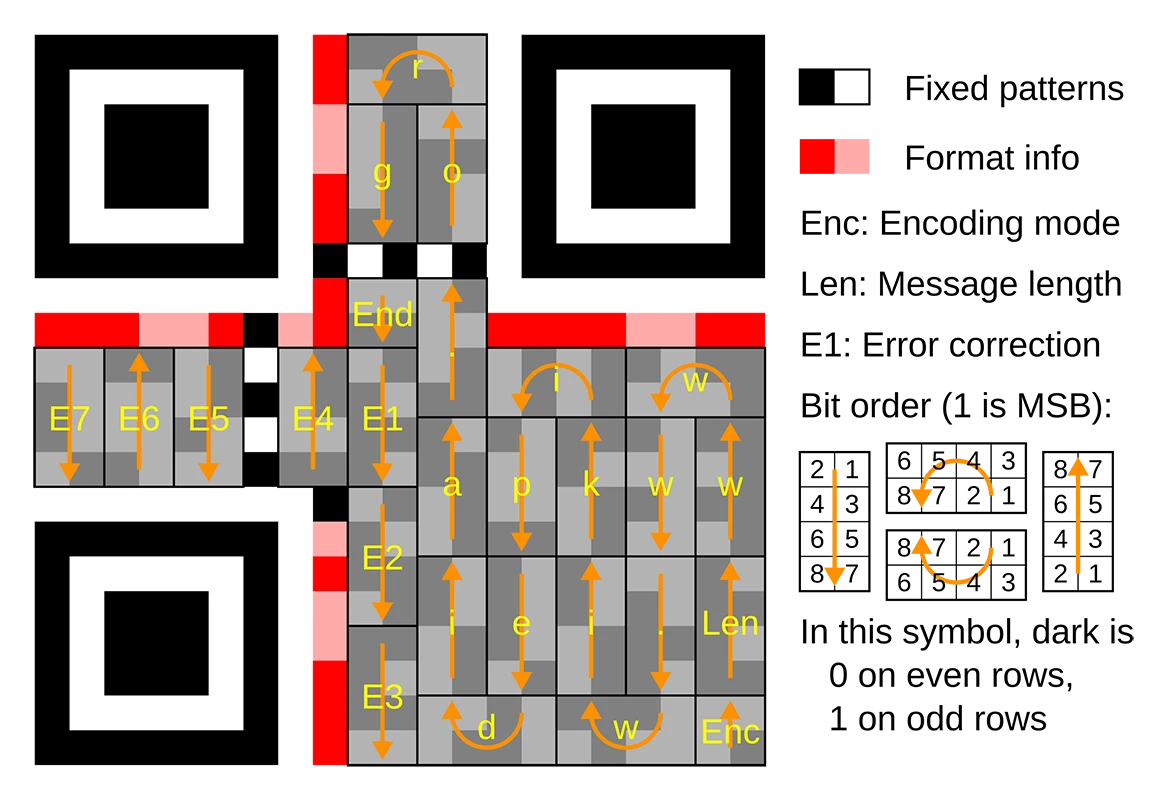
A QR code is a grid of tiny squares (“modules”) that a camera can read. The three big corner squares help your phone detect orientation, then the camera app decodes the pattern into data (usually a link). QR codes also use error correction, which is why they can still work even if slightly scratched or you put a small logo on them.
Most modern phones can handle these types smoothly:
Tip: For marketing, URLs are usually the cleanest option because you control the experience (and you can track it with UTM parameters).
A QR code can store a surprising amount of data—up to thousands of characters depending on the mode (numeric/alphanumeric/binary) and the QR version. (help.accusoft.com)
But here’s the practical rule: the more you store inside the code, the denser it gets, and the harder it becomes to scan—especially on smaller prints.
Best practice for businesses: keep the QR payload short (usually a URL). If you need “lots of info,” put that info on a webpage and link to it.
The QR code contains the final destination directly (e.g., your exact URL). It will always go to the same place. Great for permanent assets where the destination won’t change.
The QR code contains a short redirect link that you can change later. You can update the destination without reprinting, and you often get scan analytics (device type, time, rough location). Dynamic codes are ideal for campaigns, seasonal menus, A/B testing, and anything you may want to update.
For close-up use (business cards, table tents, flyers), a safe minimum is around 2 × 2 cm (about 0.8 × 0.8 in), but bigger is usually better—especially if you expect quick scans or older phone cameras.
For distance scanning (posters, windows, billboards), use the 10:1 rule: the code should be roughly 1/10 of the expected scanning distance.
You need blank space around the QR code (the “quiet zone”) so the camera can recognize it. A common standard recommendation is a quiet zone at least 4 modules wide on all sides.
QR codes scan best when the code is dark and the background is light.
Avoid:
If you want brand colors: keep the modules dark, keep the background light, and test on multiple phones.
Logos can work because QR codes have error correction, but don’t go too big. Keep the logo centered, preserve the corner markers, and test in real lighting.
Blurry prints, low-resolution exports, and over-compressed images are a top cause of scan failures. Use crisp artwork and test the final printed version (not just the on-screen PNG).
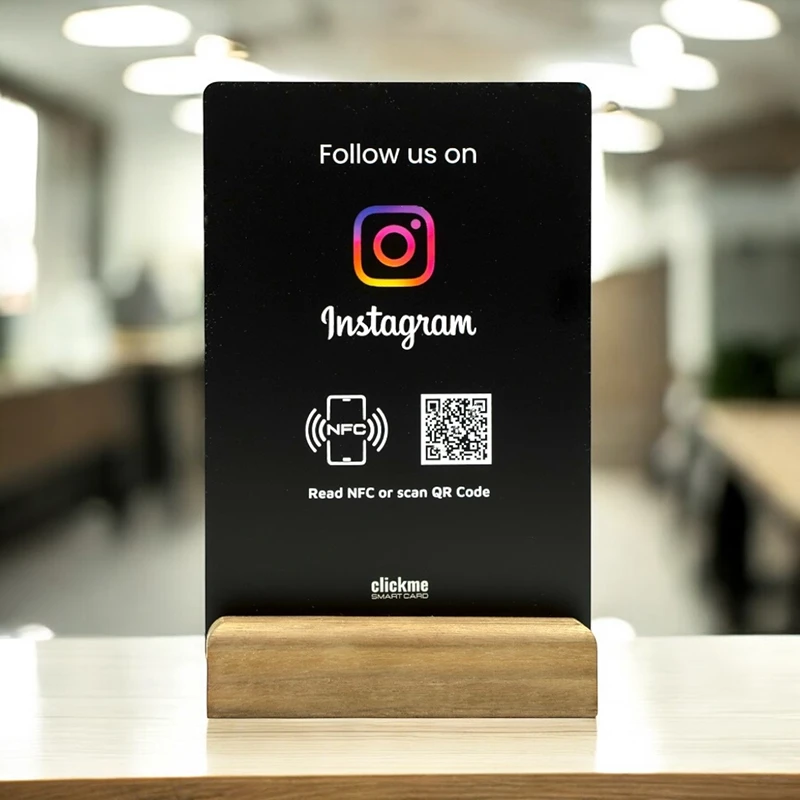
For small businesses, “standard or lightly branded” is usually the sweet spot: professional, scannable, and low risk.
QR codes can hide a malicious link just like a shortened URL can. The code itself isn’t dangerous—the destination can be.
Print your brand name and/or your real domain next to the code so customers know what to expect.
If you want a simple, safe way to generate QR codes for your business, ClickMe includes a QR code generator you can use confidently. For many use cases, a clean, direct-link QR code (pointing to your own website or a dedicated landing page) is the most reliable approach.