ClickMe Smart Card
Menu
ClickMe Smart Card

Digital Business Card settings

Step 1.

Registration and Login

If you haven’t registered yet, you can do so here. If you have an account, enter your login information.
Click on Login or My Account button.
My Account

Step 2.

Activate your Card

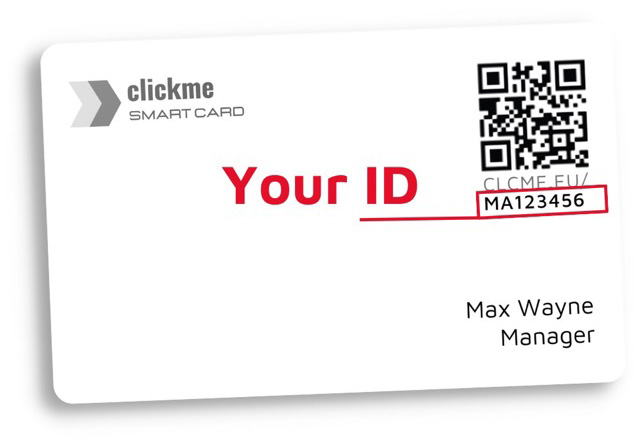
Your registration code is the ID on your card or virtual card, which consists of two capital letters and sixdigits. Afterentering the code in the blank field, press the Save button to activate your card.
Select: Edit Smart Card and activate your ID.
Edit Smart Card

Step 3.

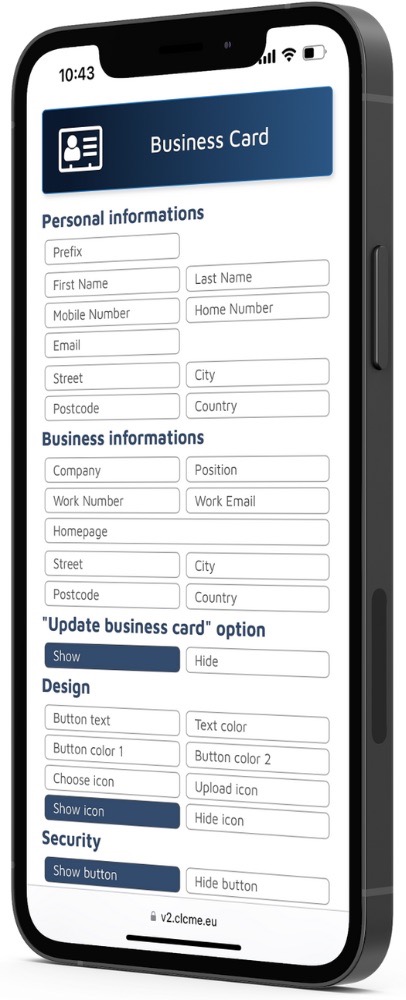
Add Business Card informations

You can upload unique profile picture.
You can enter datathat you would like to share with others. NoneNone of the fields are mandatory.
It is possible for you to modify data whenever you want.
If you click on Save button, the contact function on your card is activated immediately.
The toolbar of the link editing interface will then appear.


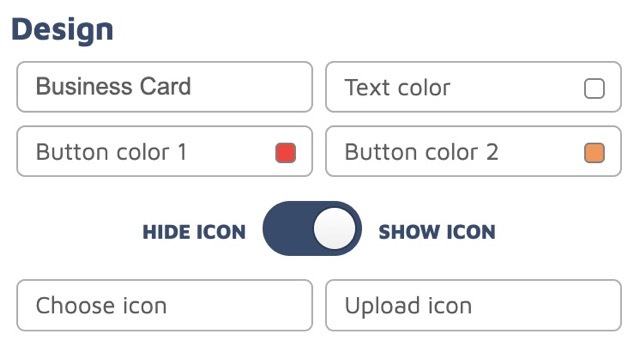
Design tab

Customize the appearance of your buttons and icons here

Button text

The text displayed on the button. Default is “Business Card,” but you can rename it to “Save Contact” or translate it to your preferred language.

Button color 1 / Button color 2

The background color of the button. Two different colors create a gradient; the same color for both = solid color.

Text color

The color of the button text.

Choose icon

Select an icon from the preset icon library to appear before the text.

Upload icon

Upload a custom icon; transparent background recommended.

Show icon / Hide icon

“Hide” will remove the icon and center the text – ideal for a clean, minimal look.

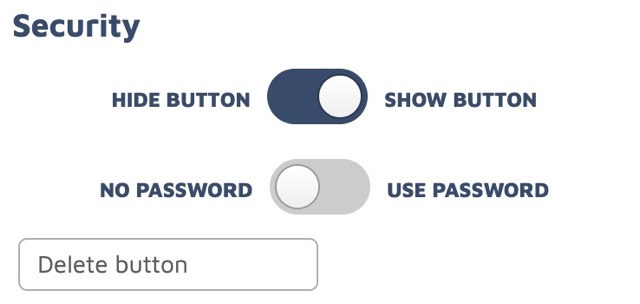
Security tab

Control the accessibility of your buttons

Hide button / Show button

Hide or reveal the button without deleting it, so you can restore it with one click later.

No password / Use password

Protect your button with a password. Only users with the password can access the content. Ideal for restricting access.

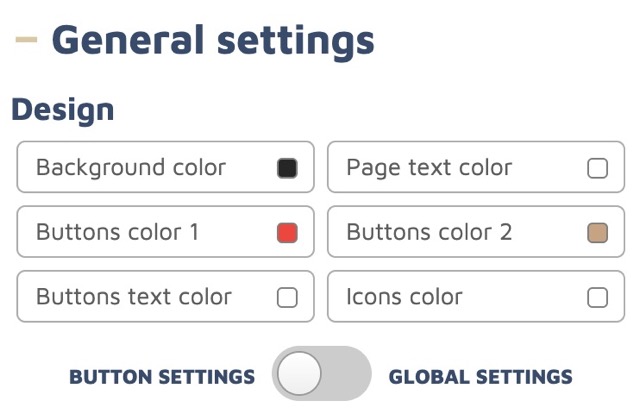
General Settings – Design Tab

Global settings that override individual button settings

Button settings → Global settings

Activate this to apply the design settings to all buttons.
Any color settings applied here will affect all elements on your public profile.

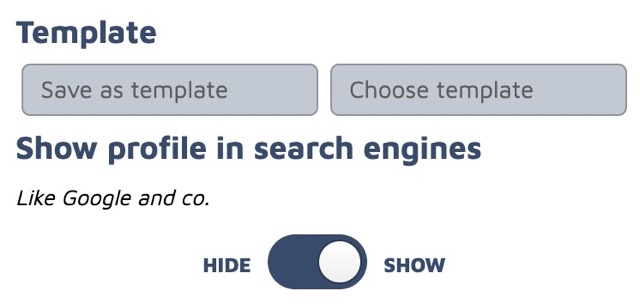
Template

Quickly create multiple smart profiles without editing each individually

First, create a template with your preferred formatting and save it.
Use the Choose template button to apply the template to any smart profile.

Other options

Show Profile in Search Engines

Show

The profile can appear in search results.

Hide

The profile will not be indexed by Google or other search engines.

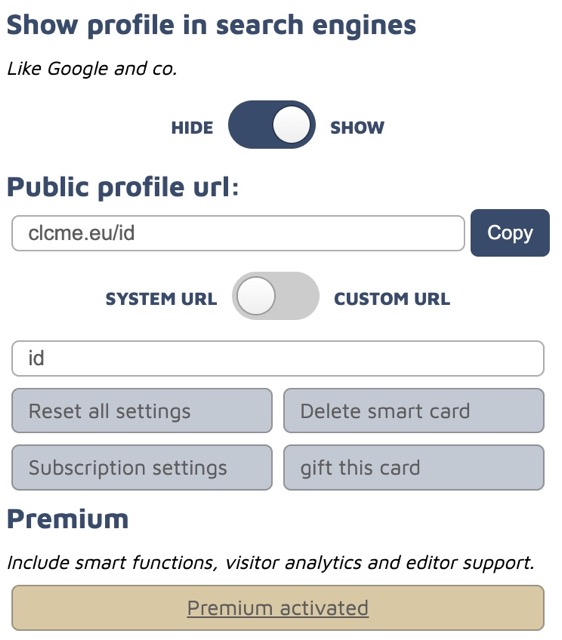
Public Profile URL

System URL / Custom URL

The online access link for your smart profile. You can set a custom URL if desired.

Reset All Settings

Resets all settings back to default.

Delete Smart Card

Permanently deletes the profile. The smart card will no longer show this profile, and it cannot be restored.

Subscription Settings

Activate, cancel, or manage premium options.

Gift This Card

Transfer ownership and editing rights of the profile to another person.
An invitation will be sent to their email. Once they accept and register, the smart profile is transferred and you will no longer be able to edit it.

Have a question? Need a price quote? Message us!

We speak: English, German and Hungarian!
Short Contact form
linkedin facebook pinterest youtube rss twitter instagram facebook-blank rss-blank linkedin-blank pinterest youtube twitter instagram