
In this tutorial, you will learn how to create a direct Google Review link for a business, even if you do not have admin access to its Google Business Profile.
This method uses the business’s Google Place ID.
Once you have the Place ID, you can insert it into a special Google review URL. The final link can be used on NFC cards, QR code signs, email signatures, receipts, thank-you pages, or customer follow-up messages.
Before you start, you only need:
You do not need access to the Google Business Profile dashboard.
First, open Google’s official Place ID Finder tool.
This tool allows you to search for a business or location on Google Maps and find its unique Place ID.
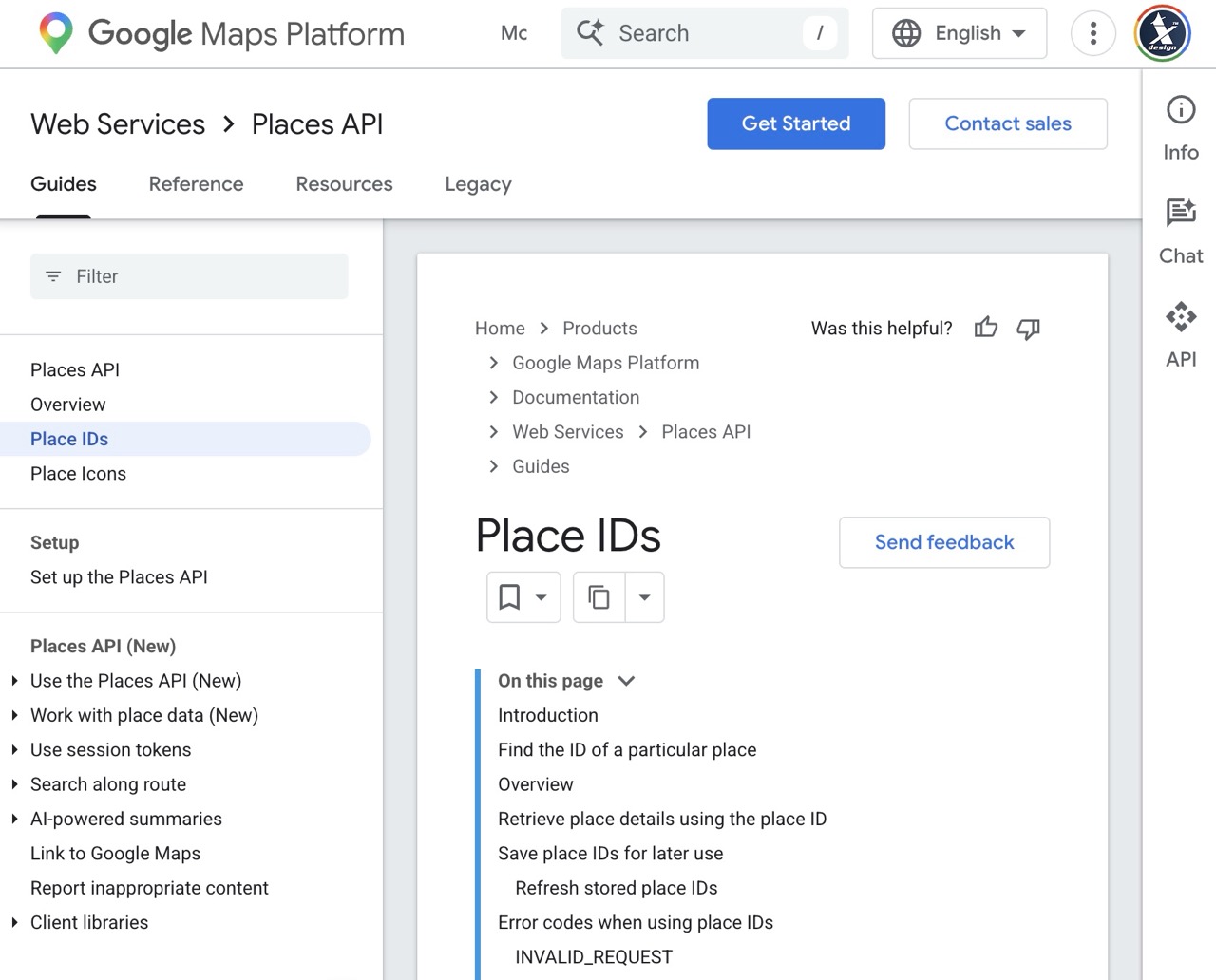
In the search field, type the name of the business.
For better accuracy, include the city or full address as well.
Example:
"Restaurant Name Amsterdam" or "Hotel Name Budapest"
This helps Google show the correct business, especially if there are several companies with similar names.
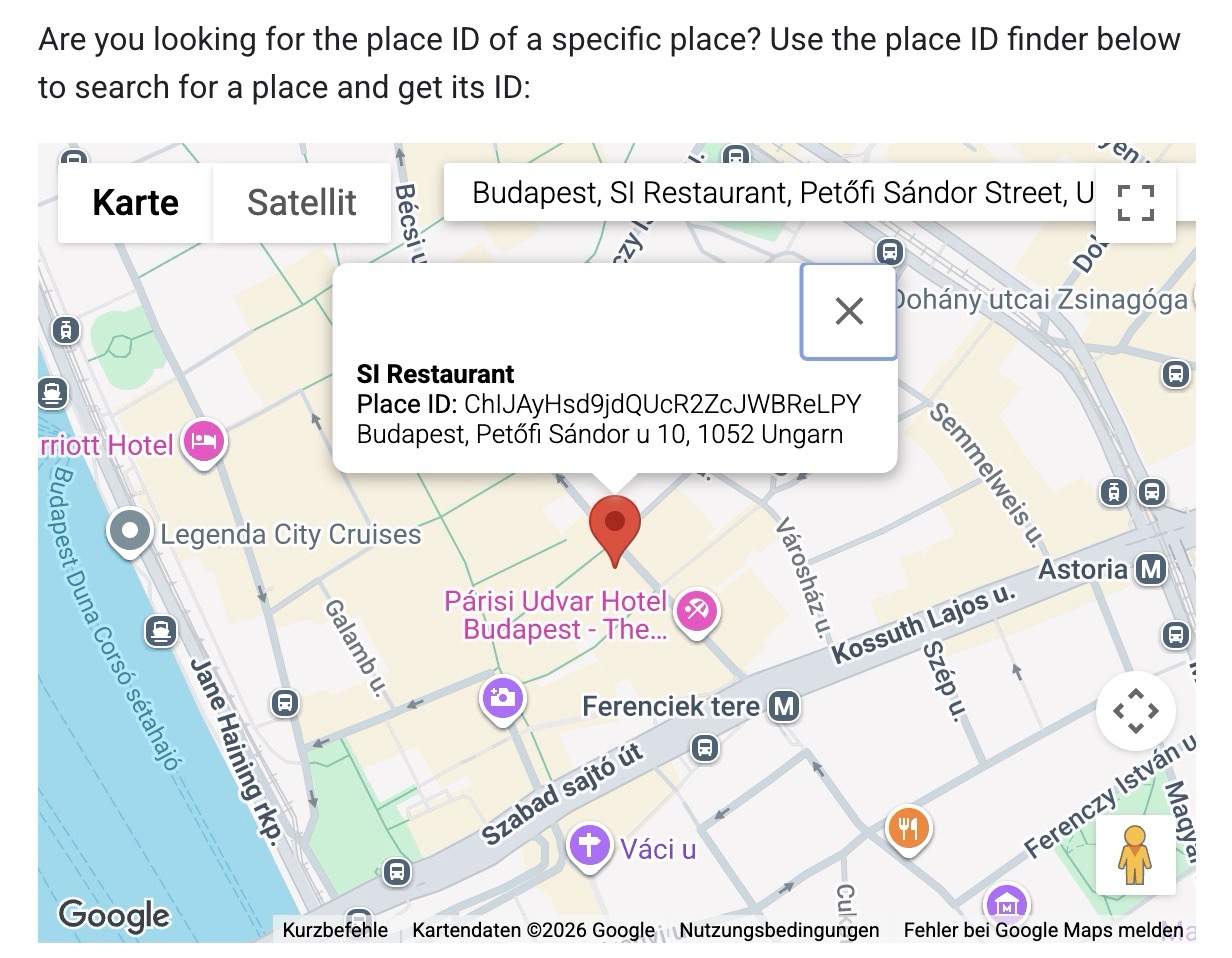
After searching, Google will show matching places on the map.
Click on the correct business.
Before continuing, carefully check that the business name and address are correct.
This is important because the Place ID is connected to a specific Google Maps location. If you select the wrong business, the final review link will also point to the wrong listing.
After selecting the correct business, the tool will display the Place ID.
The Place ID is usually a long combination of letters and numbers.
It may look similar to this:
ChIJxxxxxxxxxxxxxxxx
Copy the full Place ID exactly as shown.
Now use the following Google review link structure:
https://search.google.com/local/writereview?placeid=YOUR_PLACE_ID
Replace this part:
YOUR_PLACE_ID
with the Place ID you copied in the previous step.
For example, if your Place ID is:
ChIJxxxxxxxxxxxxxxxx
then your final Google Review link will look like this:
https://search.google.com/local/writereview?placeid=ChIJxxxxxxxxxxxxxxxx
This is the direct review link for that specific business location.
Before using the link publicly, always test it.
Open the final link in your browser and check if it opens the correct Google review window.
Depending on the device, browser, or login status, Google may display the review window slightly differently.
If the user is not logged into a Google account, Google may ask them to sign in before leaving a review.
If a company has multiple locations, each location usually has its own Place ID. This means every branch should have its own separate Google Review link. For example, a restaurant chain with locations in Brussels, Rome, and Barcelona should use different Place IDs for each location.
This Place ID method is especially useful when:
Here is the full process in short:
1. Open Google Place ID Finder
2. Search for the business name and address
3. Select the correct business location
4. Copy the Place ID
5. Add it after:
   https://search.google.com/local/writereview?placeid=
With this method, you can create a direct Google Review link without needing admin access to the Google Business Profile.
This makes it much easier to prepare review cards, QR code displays, NFC products, and customer feedback tools for local businesses.
For companies that want to collect more real customer reviews, the most important thing is convenience.
The easier the review process is, the more likely customers are to complete it.
That is why ClickMe Smart Review Cards and NFC Review Displays are designed to make the process simple:
Tap. Scan. Review.
A small physical touchpoint can turn a positive offline customer experience into visible online trust.


